01
Install
NotchFit is sold on Whop for $20 once. There's no trial and no license key — your purchase is the download.
- Buy NotchFit on Whop.
- Open your purchase on Whop, go to Software and click Download.
- Open the DMG and drag NotchFit to Applications.
- Open NotchFit from Applications. It's signed and notarized, so macOS opens it without warnings.
NotchFit lives in the menu bar as a small figure icon — there's no Dock icon. It opens at login, and the first time it starts a short welcome walks you through connecting your AI and building your plan (replay it any time from the app's Guide tab).
02
Connect Claude Code & Codex
- Open the Setup tab and click Install / update integrations. That installs the Claude Code plugin (
/notchfit:planplus activity hooks) and the Codex skills and hooks ($notchfit-plan). - Restart any Claude Code sessions that were already running, so they load the plugin.
- Codex only: run
/hooksin Codex once and trust the NotchFit hooks. - Use the Try it buttons — Simulate: AI working, AI done, permission, and Test voice — to see the notch react.
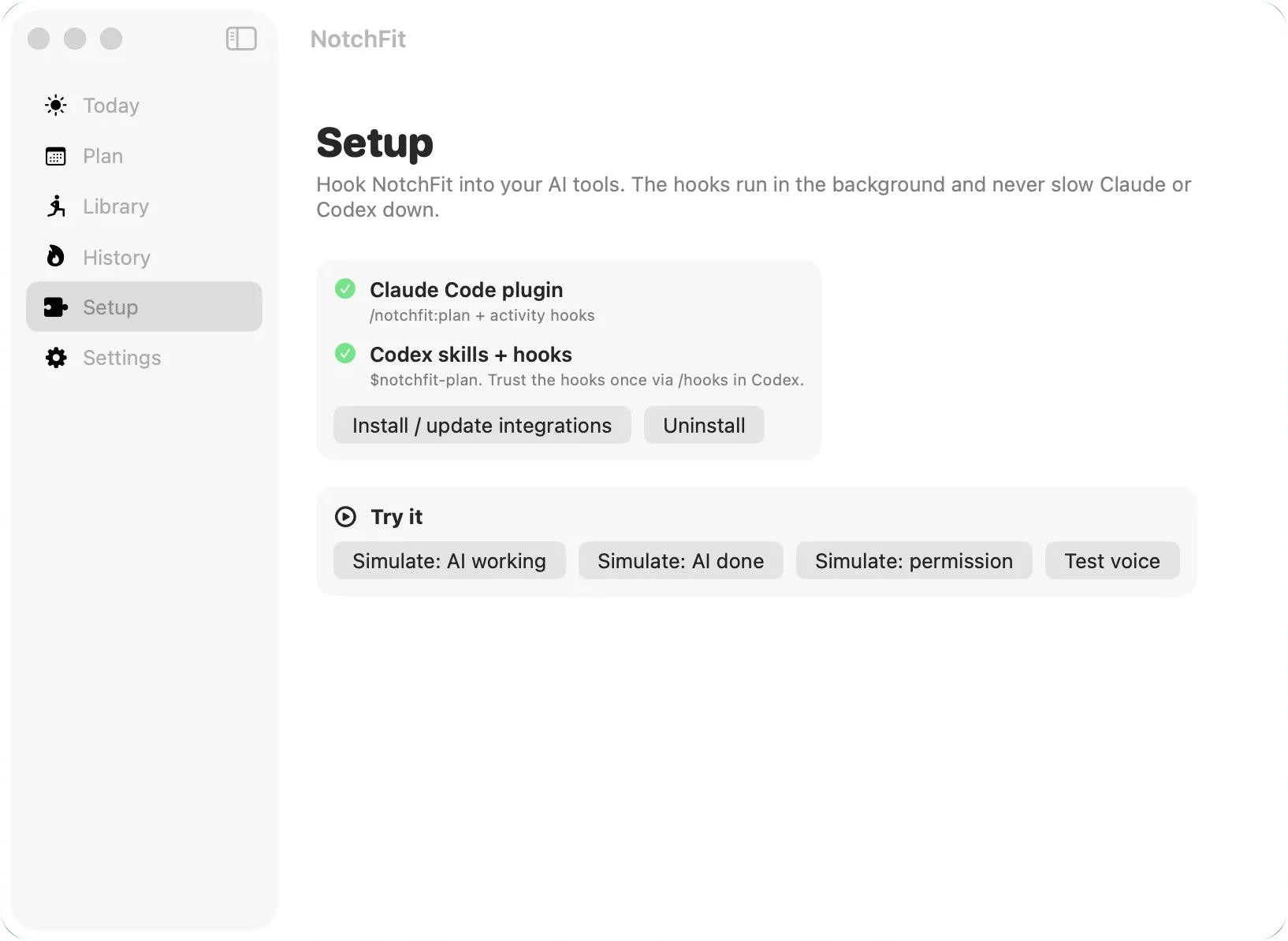
The hooks run asynchronously in the background and talk to the app over localhost, so they never slow Claude or Codex down — even if NotchFit isn't running.
03
Build your plan
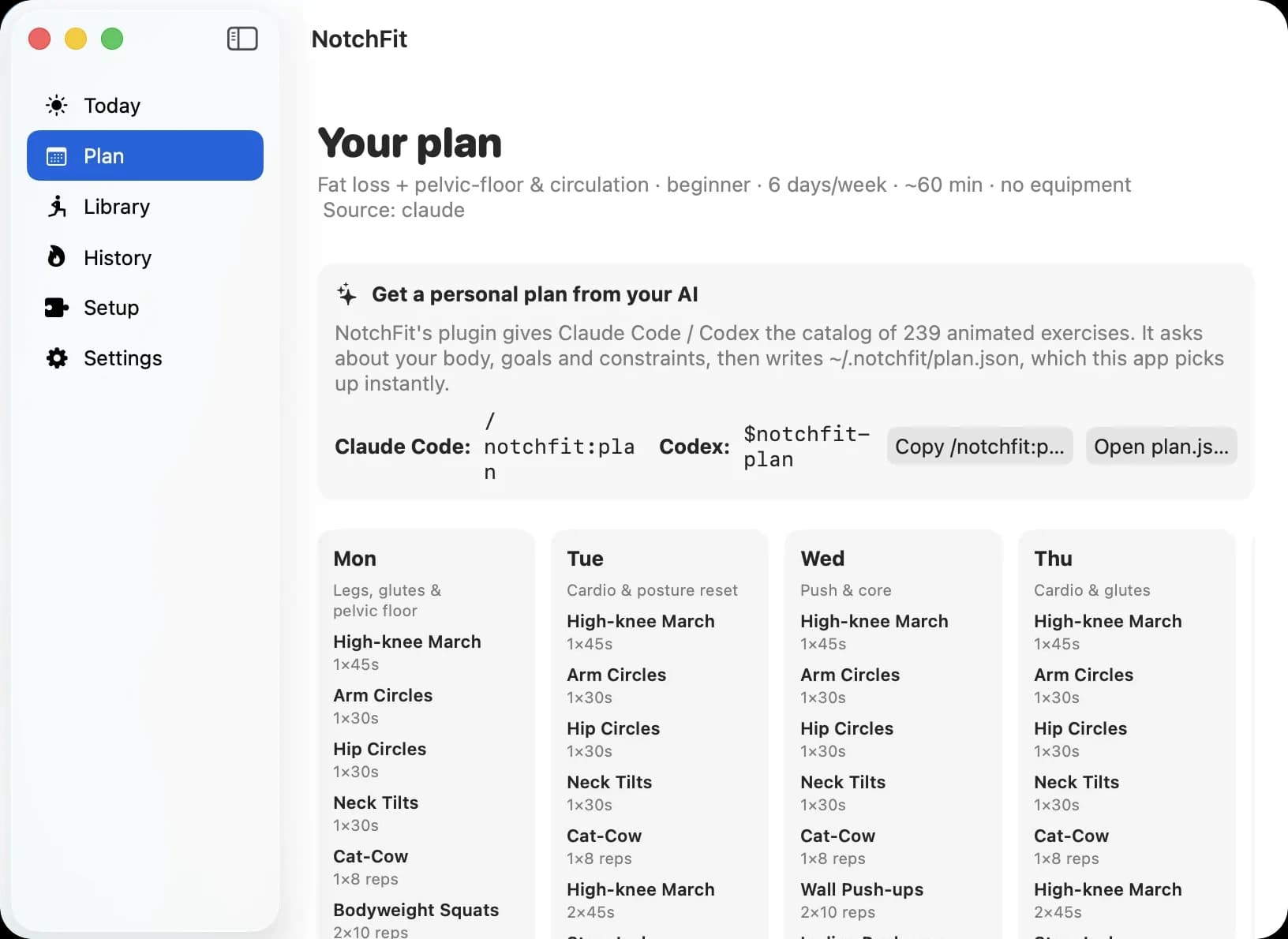
Run /notchfit:plan in Claude Code or $notchfit-plan in Codex. Your AI asks about your age, height, weight, fitness level, goal, equipment, days per week, minutes per day and injuries, then writes a weekly plan using only exercises the notch can animate.
The plan is saved to ~/.notchfit/plan.json, validated, and picked up by the app instantly — no restart.
04
Daily flow
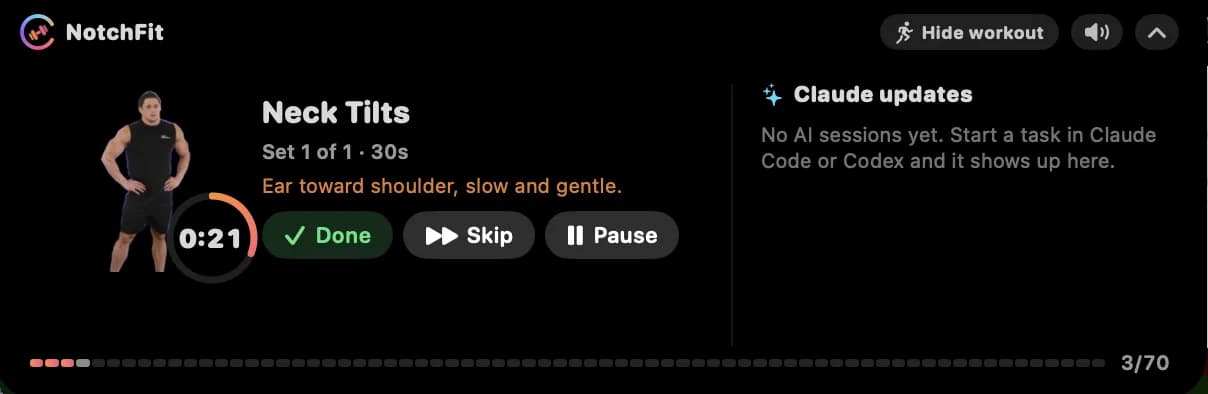
When Claude Code or Codex starts a task, the notch opens. On the left is a Start workout card; on the right, the Claude updates feed: what your AI is working on, when it's done, and when it needs permission.
- Ignore it and the notch just shows done and needs-permission alerts. It minimizes 30 s after your AI finishes.
- Tap Start workout to get your first exercise with a countdown ring, plus Done, Skip and Pause.
- After each set: a burst of confetti, then a rest timer, then Start set. Every set starts only when you tap it — the workout never runs ahead of you.
- Alerts that arrive mid-set wait until the set ends. Permission alerts stay until you answer them.
- Open terminal jumps straight to that session's Terminal or iTerm2 tab.
Once today's workout is done, NotchFit goes quiet: the notch only shows your AI's alerts until tomorrow.
05
Notch controls
- Hide workout / Show workout
- Pauses the workout and turns the notch into an AI-progress-only panel. Tap again to bring the workout back.
- Speaker
- Mutes the voice and chimes.
- ⌃ (chevron)
- Minimizes the notch until the next AI task.
- Hover
- Hover over the notch to peek at it while it's minimized.
06
Menu bar & app window
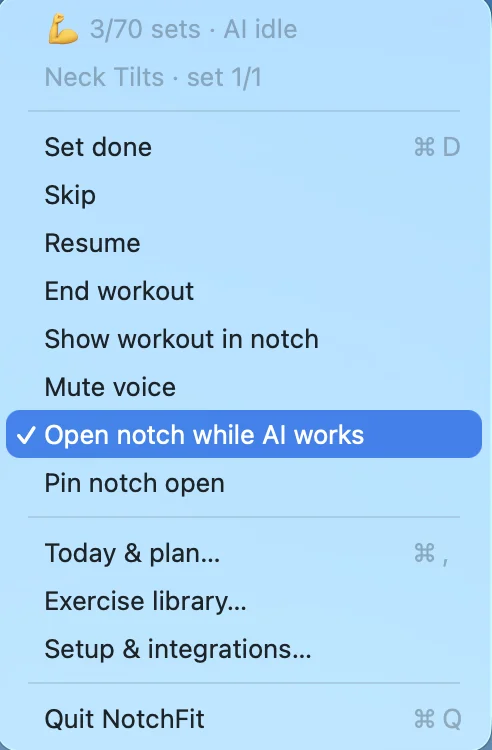
Click the figure icon in the menu bar for quick controls — set progress, AI status, Set done, Skip, Mute voice, Open notch while AI works — and to open the app window. The window has six tabs:
- Today
- Today's workout and where you are in it.
- Plan
- Your weekly plan, the /notchfit:plan command, and Quick plan.
- Library
- All 239 exercises, filterable by category, with the muscles each works.
- History
- Your streak and a calendar of the days you moved.
- Setup
- Install / update or uninstall integrations, and the Try it buttons.
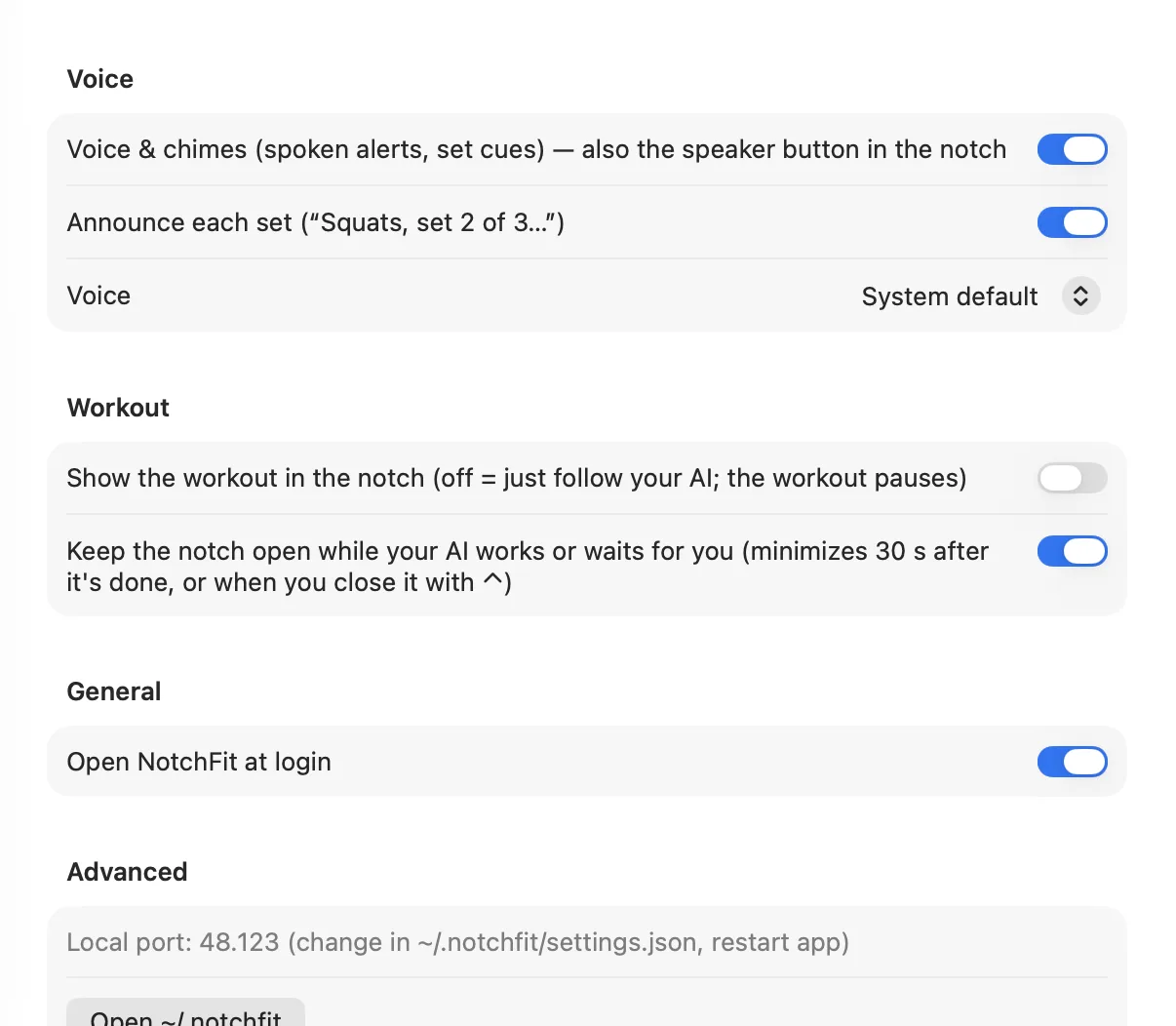
- Settings
- Voice & chimes, announce each set, voice picker, show the workout in the notch, keep the notch open while your AI works, open at login.
07
Command line (optional)
Integrations also link a notchfit command, handy for scripts or a quick keyboard workflow. You never need it for normal use.
- $ notchfit start
- Start today's workout
- $ notchfit stop
- Stop today's workout
- $ notchfit done
- Finish the current set
- $ notchfit skip
- Skip the current set
- $ notchfit now
- Start the next set now
- $ notchfit pause / resume
- Pause or resume the workout
- $ notchfit status
- JSON status: current set and AI sessions
- $ notchfit validate [file]
- Check a plan.json (default ~/.notchfit/plan.json)
- $ notchfit reload
- Reload plan.json into the app
- $ notchfit catalog
- The exercise catalog (ids the notch can animate)
- $ notchfit simulate done|working|permission
- Test the notch without a real AI task
- $ notchfit doctor
- Check the install, integrations and the local server
08
Troubleshooting
The notch didn't open when my AI started
- Check that the Setup tab shows a green ✓ for Claude Code and Codex. If not, click Install / update integrations.
- Restart Claude Code sessions that were running before you installed.
- Make sure Keep the notch open while your AI works is on in Settings.
- Run
notchfit doctorin a terminal — it checks the app, hooks and local server.
Codex events don't show up
Run /hooks in Codex and trust the NotchFit hooks. Codex ignores hooks until you do.
“Open terminal” asks for permission
The first time, macOS asks whether NotchFit may control Terminal or iTerm2 — that's how it finds the right tab. Allow it once.
No voice
Check the speaker button in the notch isn't muted, then look at Settings → Voice (voice & chimes on, and a voice picked).
My Mac doesn't have a notch
That's fine: NotchFit shows a top-center pill in the same place and works the same way.
09
Updating & uninstalling
To update, download the latest DMG from your Whop purchase and replace the app in Applications. Your plan and history are kept.
To uninstall, open Setup → Uninstall (this removes the Claude Code plugin, the Codex hooks and the CLI link), then delete NotchFit from Applications. Your data lives in ~/.notchfit — delete that folder too if you want a clean slate.
Still stuck?
Email puspalatha@hodolist.com or read the FAQ.